

Permissions
Apps use permissions to access company data and act on behalf of users. Every API call requires the matching permission. You declare the ones you need in your app’s settings, creators approve them at install, and your SDK calls succeed only when those permissions are granted.
Find the required permissions for any endpoint in the API reference. Each operation page lists them under “Required permissions.”
Required vs optional permissions
You can mark each permission as required or optional. The choice changes the install experience for creators.
Optional permissions are good for opt-in functionality. If a creator declines an optional permission, your app should still work, just without that feature.
Set up permissions
The permissions flow is required even for testing on your own company. Same flow on install or self-test, so you catch missing scopes early.
Open your app's permissions tab
- Go to the Developer dashboard.
- Select or create an app.
- Click the Permissions tab.
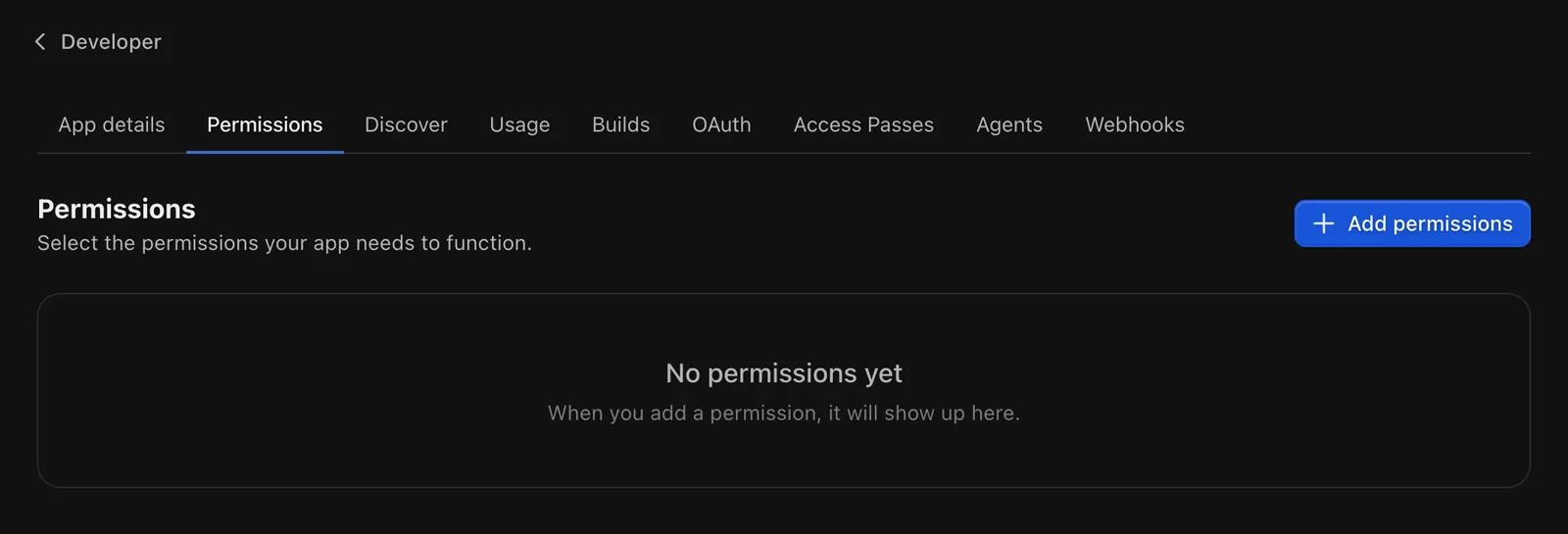
Add the permissions you need
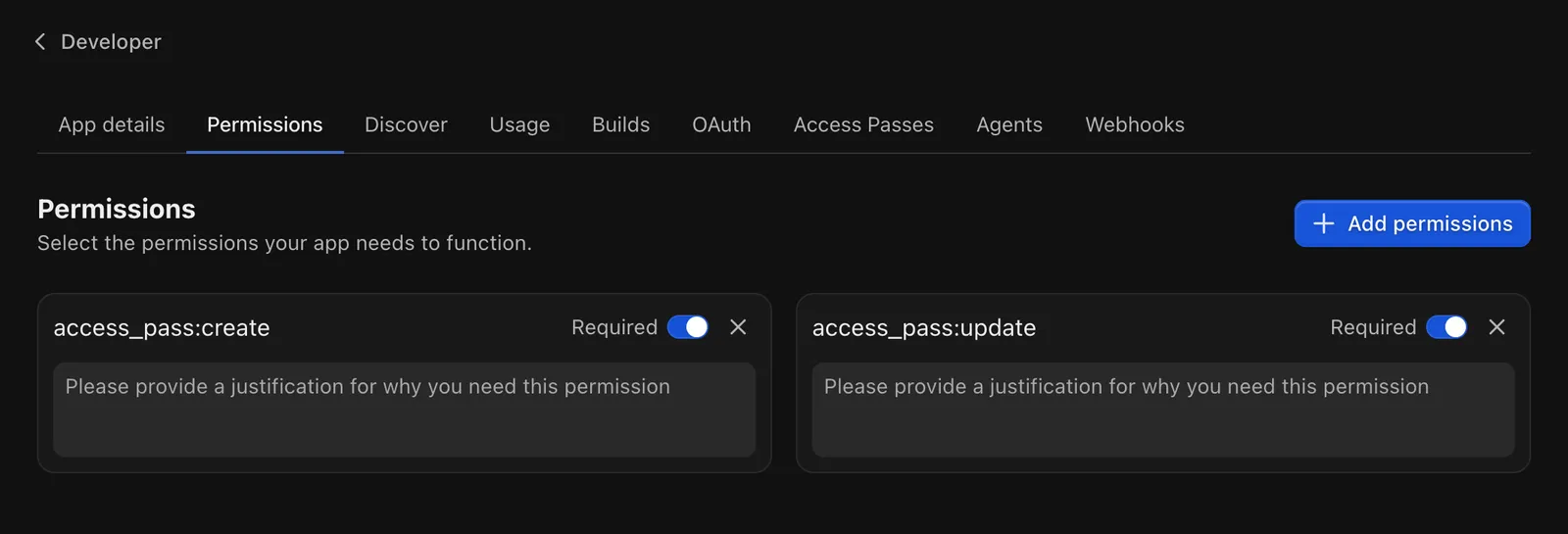
Click Add permissions, select what your app needs, and confirm.
Cross-reference the API endpoints you plan to call and add every permission they require.

Update permissions later
Permissions can change as the app evolves. When you add a new one:
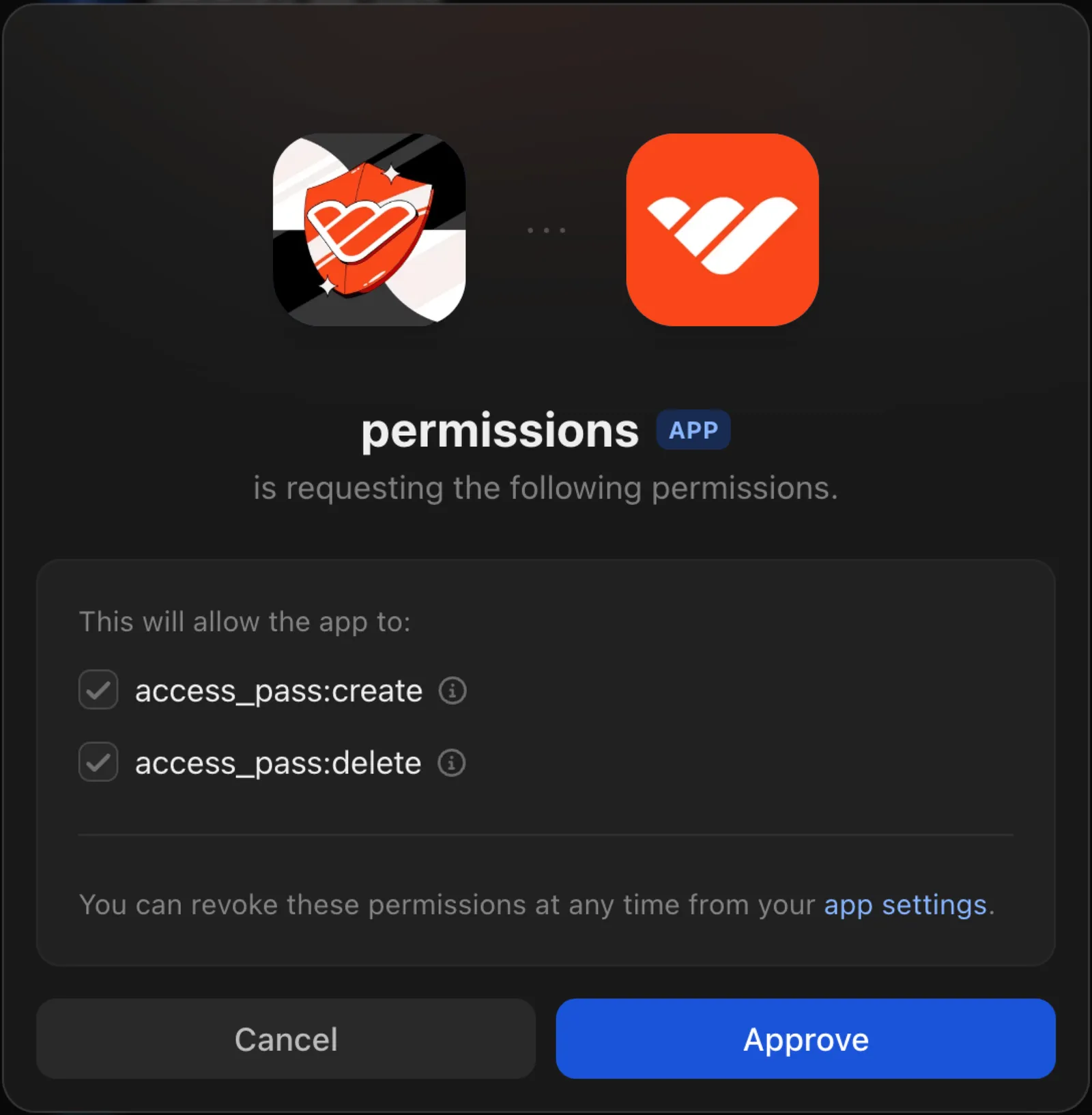
- Existing installs see a Re-approve button next to your app.
- API calls that need the new permission fail until each creator re-approves.
When you add a permission, re-approve on your own test company too. New scopes don’t carry over until you accept them in Authorized apps.
Creators can manage granted permissions any time at Dashboard → Settings → Authorized apps.
FAQ
How many permissions can I request?
Up to 100 per app.
How do I find the right permissions for an endpoint?
Each endpoint in the API reference lists its required permissions inline.

Can I request additional permissions afterwards?
Yes. You can request additional permissions and the creator will be asked to re-approve them.
Keep in mind that until the permissions are re-approved, API requests requiring the newly requested permissions will fail. Make sure to handle these errors gracefully in your code.
When developing your app, make sure you re-approve the permissions yourself in your Authorized apps settings.
See Configure your permissions for more information.